






.png)
This article walks you through configuring your Microsoft 365 tenant for ArcTitan email archiving. We provide an automated PowerShell script to streamline this process, minimising manual configuration and ensuring a secure setup.
⚠️ IMPORTANT: Missing information?
To successfully run the onboarding script, you will need specific details about your ArcTitan environment, including your company tag and your ArcTitan server region. If you are lacking any of this information, please stop and reach out to CyberSentriq Support or your account manager before proceeding.
TABLE OF CONTENTS
- Prerequisites
- What the script does
- Running the onboarding script
- Configuring the ArcTitan UI
- Troubleshooting
- Script
Prerequisites
Download the onboarding script (ArcTitan_Onboarding.ps1) at the bottom of this page.
Before running the script, ensure you have the following:
- Credentials: Global Administrator credentials for your Microsoft 365 tenant.
- ArcTitan details: Your allocated ArcTitan region (e.g., EU, US, US2, UK, Canada, or Australia) and company tag.
- Environment: Windows 10, Windows 11, or Windows Server 2019+.
- Software: Windows PowerShell 5.1 (built-in) or PowerShell 7+. Local administrator rights are not required.
What the script does
The onboarding script configures the necessary Microsoft 365 administrative settings. It offers two setup modes: Standard and Full. Standard mode is for archiving new mail going forward, while Full mode is required if you plan to import historical emails or utilize advanced restore features.
| Configuration action | Standard mode | Full mode |
| Azure AD App Registration: Creates an app used for single sign-on (SSO) login to ArcTitan. | Yes | Yes |
| Exchange Outbound Connector: Relays journaled mail to the regional ArcTitan SMTP host. | Yes | Yes |
| Global Journal Rule: Directs all new mail to the ArcTitan journal recipient. | Yes | Yes |
| Journaling Report NDR: Sets the non-delivery report address. | Yes | Yes |
| Graph API Permissions: Grants Mail.Send and Mail.ReadWrite for mailbox access. | No | Yes |
| Exchange Permissions: Grants full_access_as_app to read source mailboxes during historical imports and write back during restores. | No | Yes |
| Journal Rule: Captures mail and forwards it to the ArcTitan journal recipient. Scope is selectable during the run: either all users (global) or only members of a specified distribution group. | Yes | Yes |
Running the onboarding script
Step 1: Launch the script
Open Windows PowerShell, navigate to the folder containing the script, and run .\Configure-ArcTitanOnboarding.ps1. The script will automatically install necessary Microsoft Graph submodules on the first run.
Step 2: Provide onboarding details
The script will prompt you for four pieces of information:
- Company tag: A short identifier provided by your account manager (e.g., acmecorp).
- ArcTitan region: The datacenter hosting your tenant (e.g., EU, US).
- Setup mode: Choose 1 for Standard mode or 2 for Full mode.
- Journal rule scope: Choose 1 to journal all users (recommended), or 2 to scope the journal rule to a specific distribution group. If you choose 2, the script will then ask for the group's primary SMTP address. The group must already exist as a mail-enabled distribution or security group in Microsoft 365.
Review the summary displayed and type y to confirm.
Step 3: Authenticate to Microsoft 365
You will be prompted to authenticate twice:
- Microsoft Graph sign-in: The script will output a device code. Open https://microsoft.com/devicelogin in your browser, enter the code, and sign in as a Global Administrator. The script will then build the Azure AD app and assign permissions.
- Exchange Online sign-in: A second device code will appear. Sign in again with the same Global Administrator account. The script will build your mail flow rules and connectors.
Step 4: Save your configuration
Once complete, the script will output your OAuth Connection Settings to the screen. It also securely saves these details to your local Documents folder (Documents\CyberSentriq-ArcTitan\<company-tag>\) in both text and JSON formats.
Configuring the ArcTitan UI
After the script finishes, you must apply the generated credentials inside the ArcTitan interface.
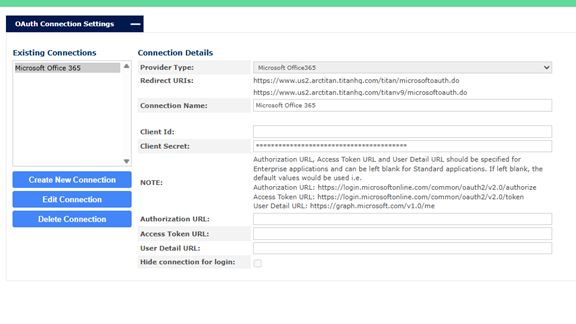
SSO - OAuth configuration (all modes)
- Sign in to the ArcTitan UI as an Administrator.
- Navigate to Adv. Configuration > SSO - OAuth.
- Click Create New Connection.
- Copy the corresponding values from the script's output file:
- Provider Type: Microsoft Office365
- Connection Name: Microsoft Office 365
- Client Id: (From script output)
- Client Secret Value: (From script output)
- Authorization URL: (From script output)
- Access Token URL: (From script output)
- User Detail URL: https://graph.microsoft.com/v1.0/me
- Click Save Connection.
Mailbox Reader and restores (Full mode only)
If you ran the script in Full mode, you can configure historical imports:
- Navigate to Mailbox Reader > Connection Settings. Create a connection using Protocol: MSGraph, Server: outlook.office365.com, your new OAuth connection, and your Tenant ID. (Note: Your Tenant ID is generated and displayed on-screen by the script, and is also saved in your local output file).
- To configure advanced restores, navigate to Basic Configuration > Restore & Authentication. Set the Protocol to EWS and Authentication Type to OAuth app impersonation for O365.
Troubleshooting
- Sign-in code times out: Device codes expire after 15 minutes. Re-run the script if you miss the window.
- Untrusted Publisher prompt: When PowerShell installs the Microsoft modules, click "Always run" to trust the Microsoft Corporation certificate.
- Connector validation fails: Ensure you do not have custom transport rules blocking mail to the ArcTitan domain.
 1.png)