






.png)
PAGE CONTENTS
In the ArcTitan admin portal:
1. Log in with an existing user or by using a one-time link from your service provider. The admin portal URL will be tenant-specific and will be in the format:
| https://<customer_tag>.outlook.<region>.arctitan.titanhq.com |
Ensure you use the correct customer tag and region.
2. Go to Settings > Authentication > Add Connection.
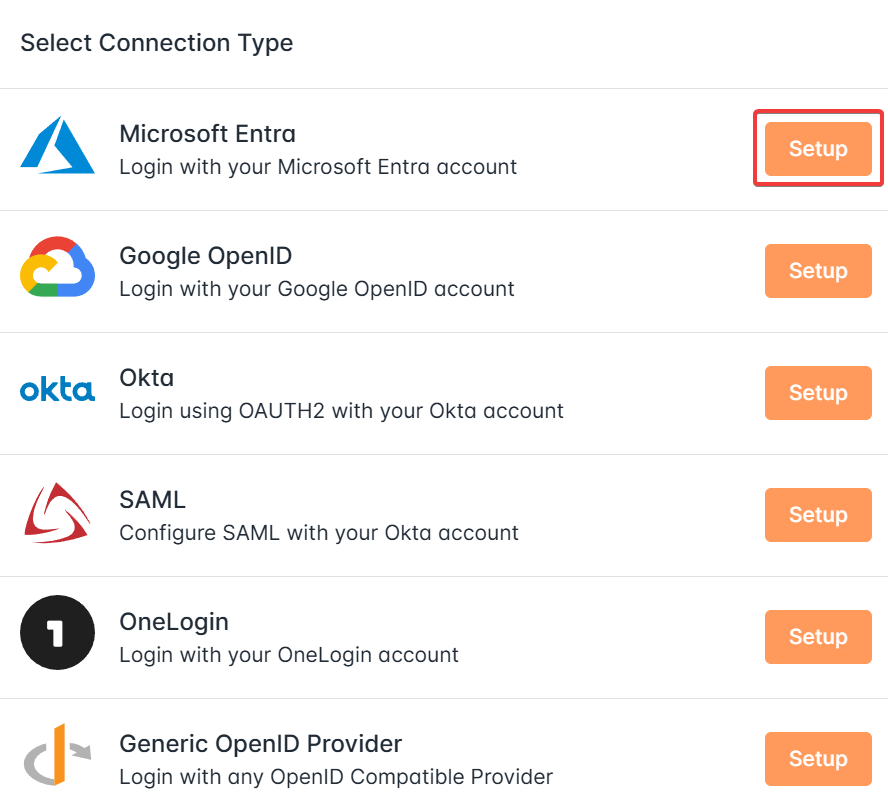
3. Under Select Connection Type, click Setup for your preferred option (in this case Microsoft Entra).
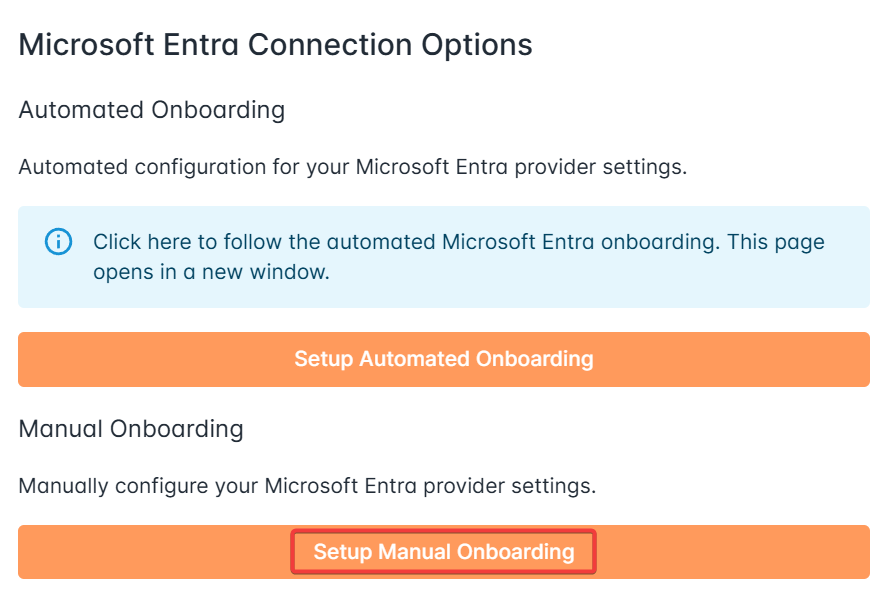
4. Click on Setup Manual Onboarding.
In Microsoft 365:
1. Log into the Microsoft Azure portal with an admin user.
2. Under Azure services, click on Microsoft Entra ID (or locate this under More services).
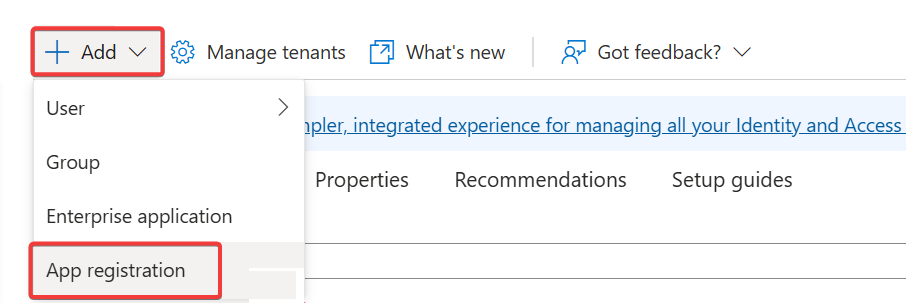
3. Create a new app by going to Add > App registration. Or, if you have an existing application for OAuth/SSO purposes for ArcTitan, you can edit this instead.
4. Complete the fields:
- Name: ArcTitan
- Supported account types: Single tenant only + tenant name
- Redirect URI:
- Select Web.
- Paste the redirect URI found in the ArcTitan admin portal under Settings > Authentication > Microsoft Entra > Provider Configuration.
5. Click on Register.
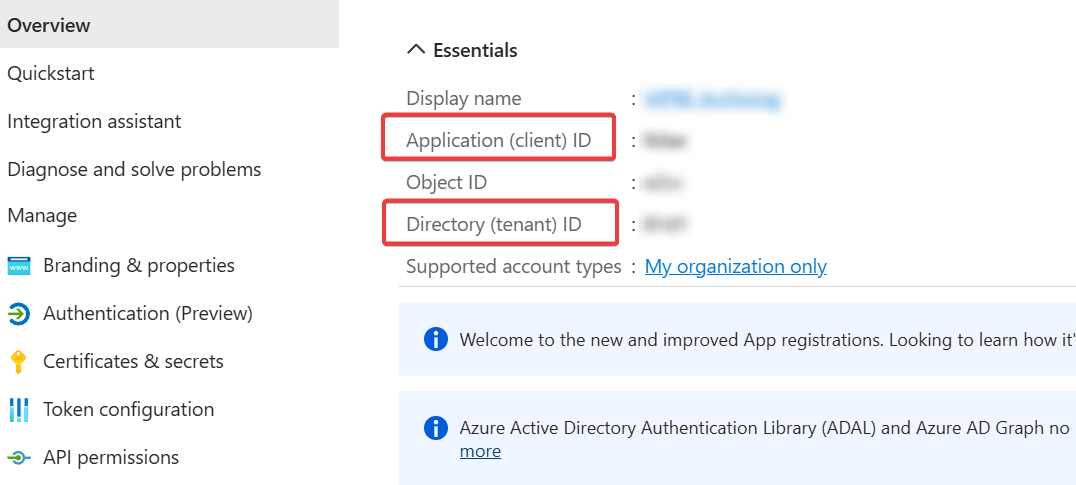
6. Copy the provided Application (client) ID to the Client ID field in ArcTitan.
7. Copy the provided Directory (tenant) ID to the Tenant ID field in ArcTitan.
8. Go to Certificates & secrets > New client secret.
9. Complete the fields:
- Description: ArcTitan
- Expires: 730 days (24 months)
- The maximum is 24 months. We recommend that this secret expire with the rest of your client secrets so you can update them all at once.
10. Click on Add. A window containing your client secret will open.
11. Copy this value to the ArcTitan client secret.
Note: Secret keys are only displayed on-screen once, so it is extremely important that you record this immediately.
12. Enter a name and set a duration for the key.
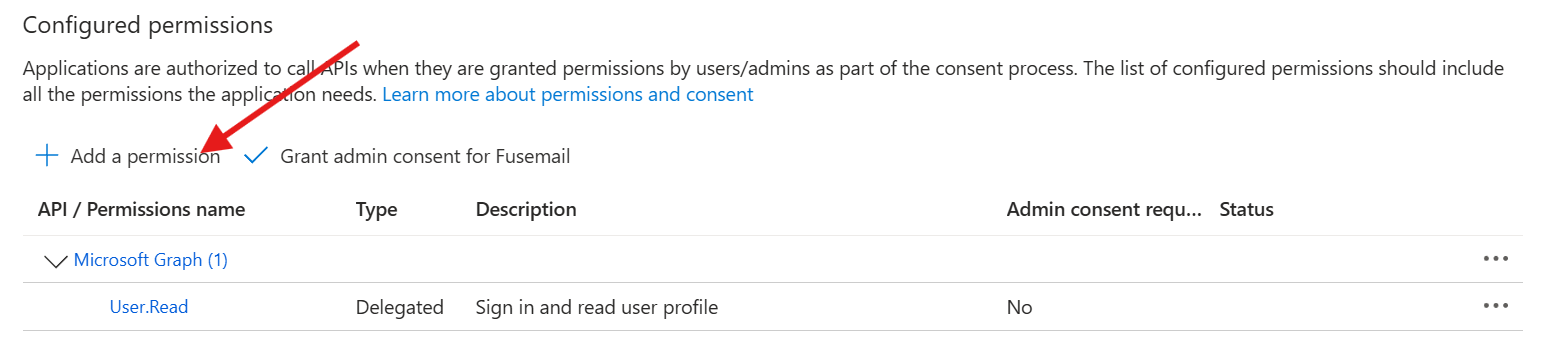
13. Go to Manage > API permissions > Add a permission.
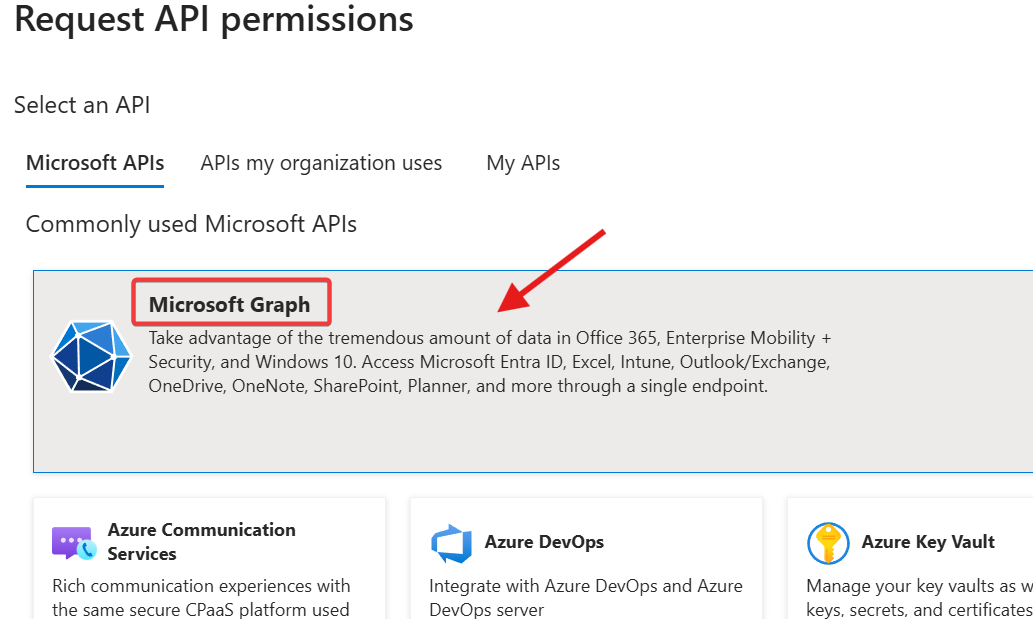
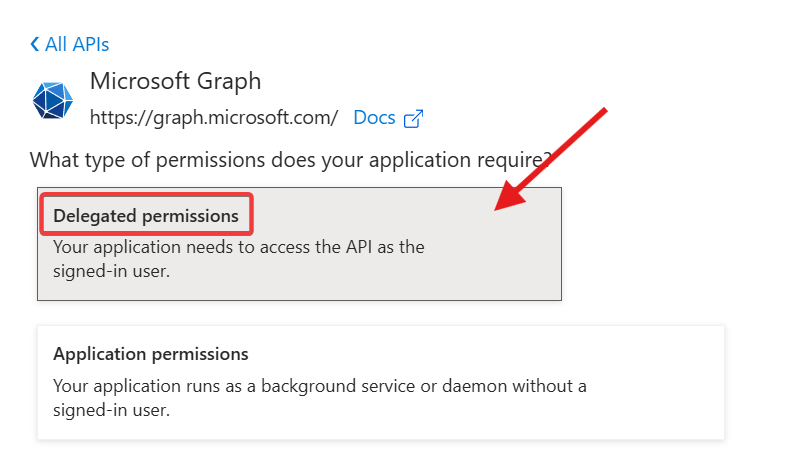
Select Microsoft Graph, then Delegated permissions.
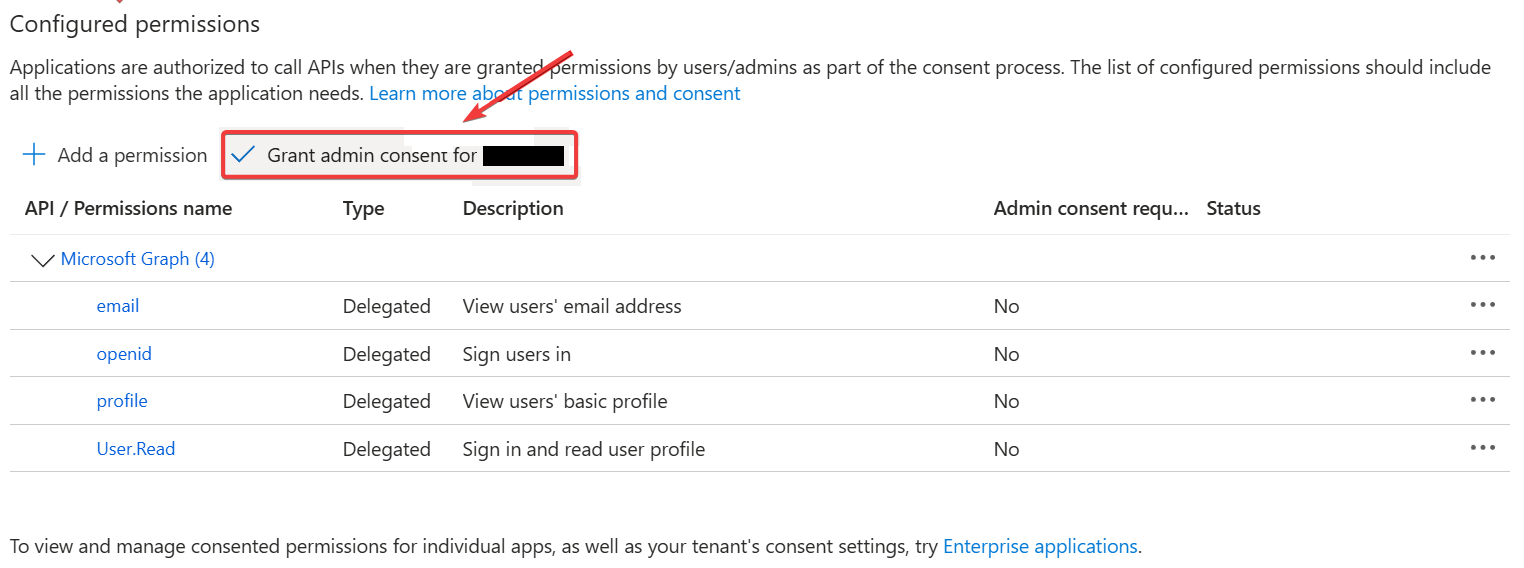
Ensure the following permissions are granted (required for ArcTitan functionality):
- openId
- profile
- User.Read
14. Once these have been added, click on Grant admin consent for <tenant name>.
After a successful login, ArcTitan will connect to the Microsoft Graph API, passing the user credentials returned from OAuth to obtain essential details about the user, such as:
- secondary email addresses
- first and last name
- account creation date
- UPN (User Principal Name)
- GUID (globally unique identifier)
The Graph API may be used to obtain data from Entra ID in the same way that LDAP was used for on-premises services.
Once the OAuth setup is complete, you can add admins for the archive under Staff Members in ArcTitan. These admins must have Entra ID users for authentication purposes, as well as the correct permissions.
 1.png)