






.png)
PAGE CONTENTS
How to set up local accounts
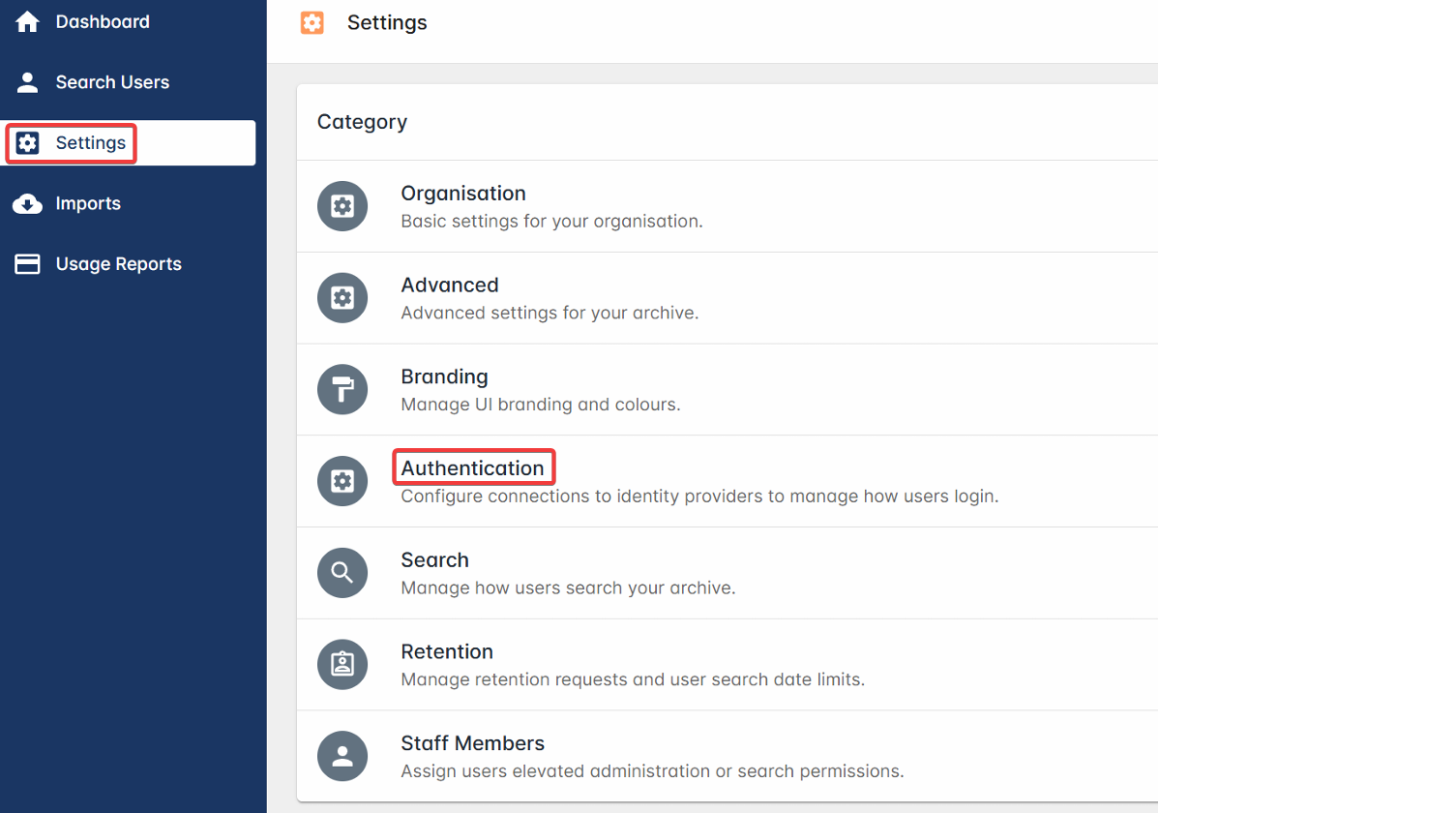
1. In the ArcTitan admin portal, go to Settings in the side navigation and click on Authentication.
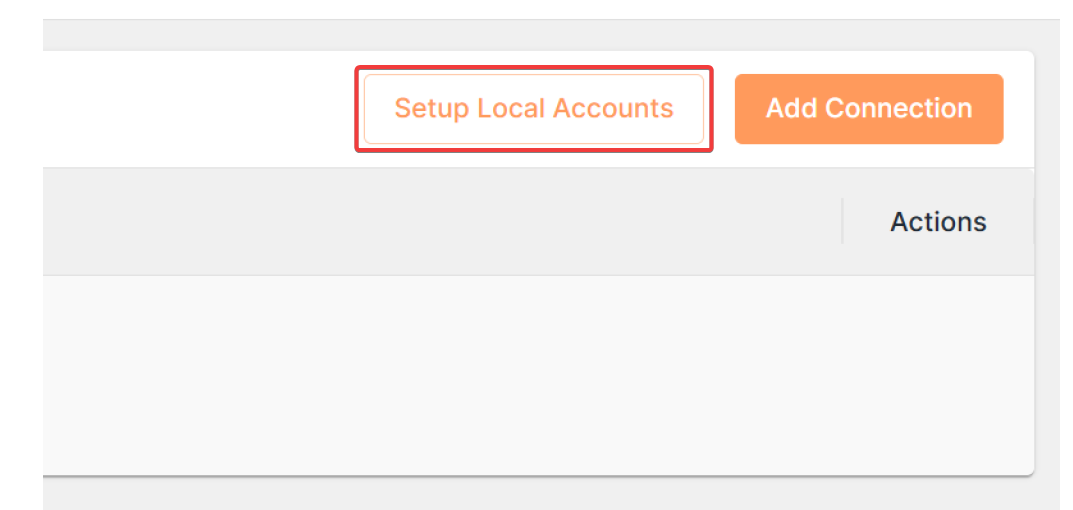
2. Click on Setup Local Accounts at the top right.
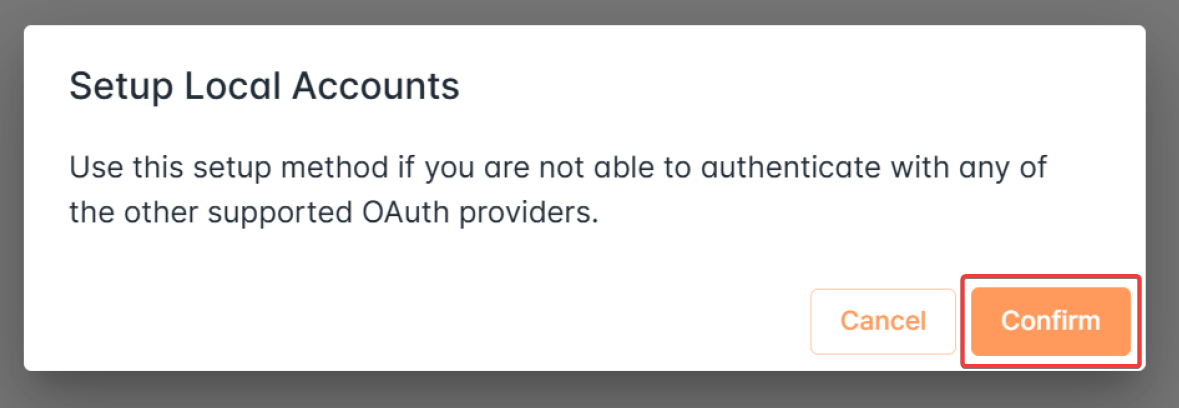
3. Click on Confirm. This will autocreate a local account for logging into the archive.
You will see the local account in the list of connections under Settings > Authentication.

How to add users
You can create two types of ArcTitan users:
- Search users can access ArcTitan only through the search portal, and have access only to their own emails. To add a search user, go to Search Users in the side navigation and click on + Add Search User.

- Admin users can access ArcTitan through the admin portal and need additional permissions. To add an admin user, go to Settings > Staff Members and click on + Add Staff Member.

To delete a user of either type, locate the user in the relevant list and expand the three-dot menu under Actions.

Select Delete.
How to activate a user
A user logging in with the local account for the first time will need to go to the tenant-specific Outlook URL, which will be in the format:
| https://<customer_tag>.outlook.<region>.arctitan.titanhq.com |
Ensure they use the correct customer tag and region.
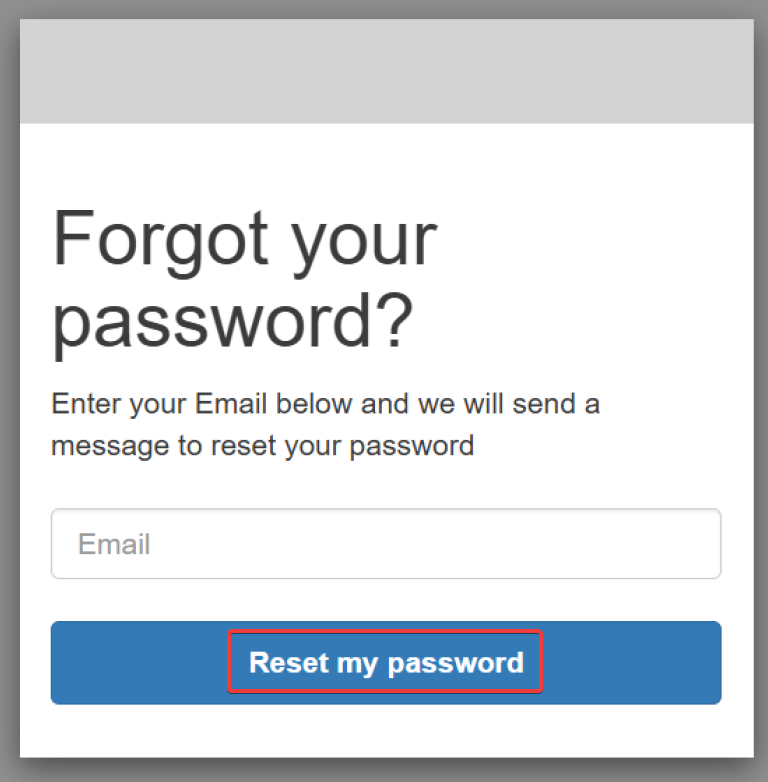
From here, they need to click on Forgot your password?, enter their registered email for the archive, and click on Reset my password.
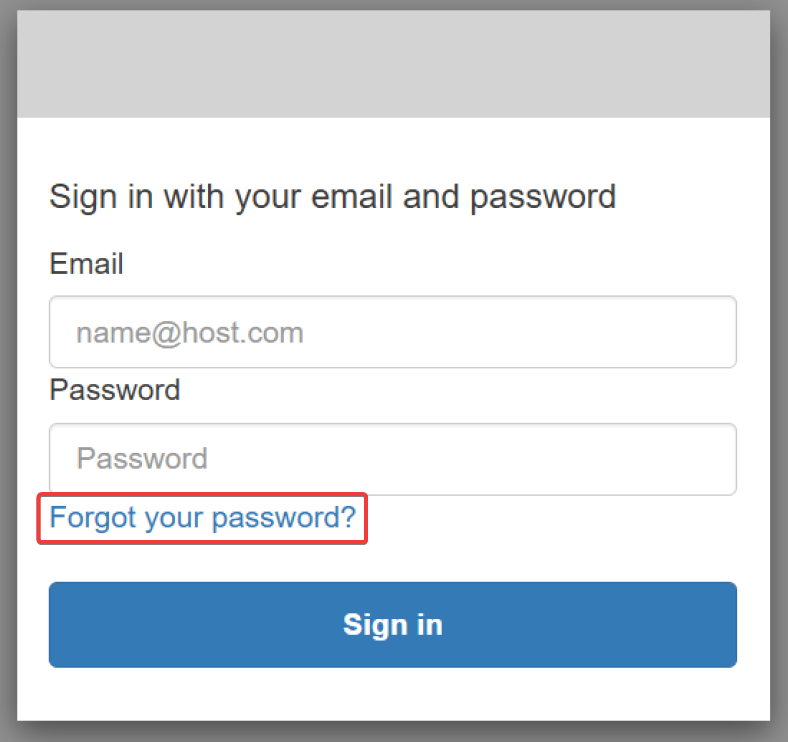
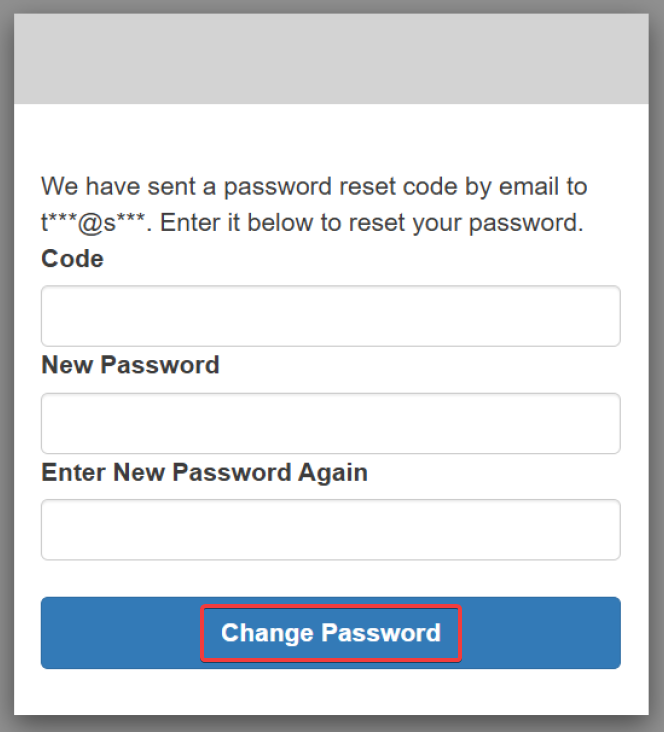
They will then receive an email with a security code, which they need to enter along with the new password they will use for logging in with the local account.
How to disable a local account
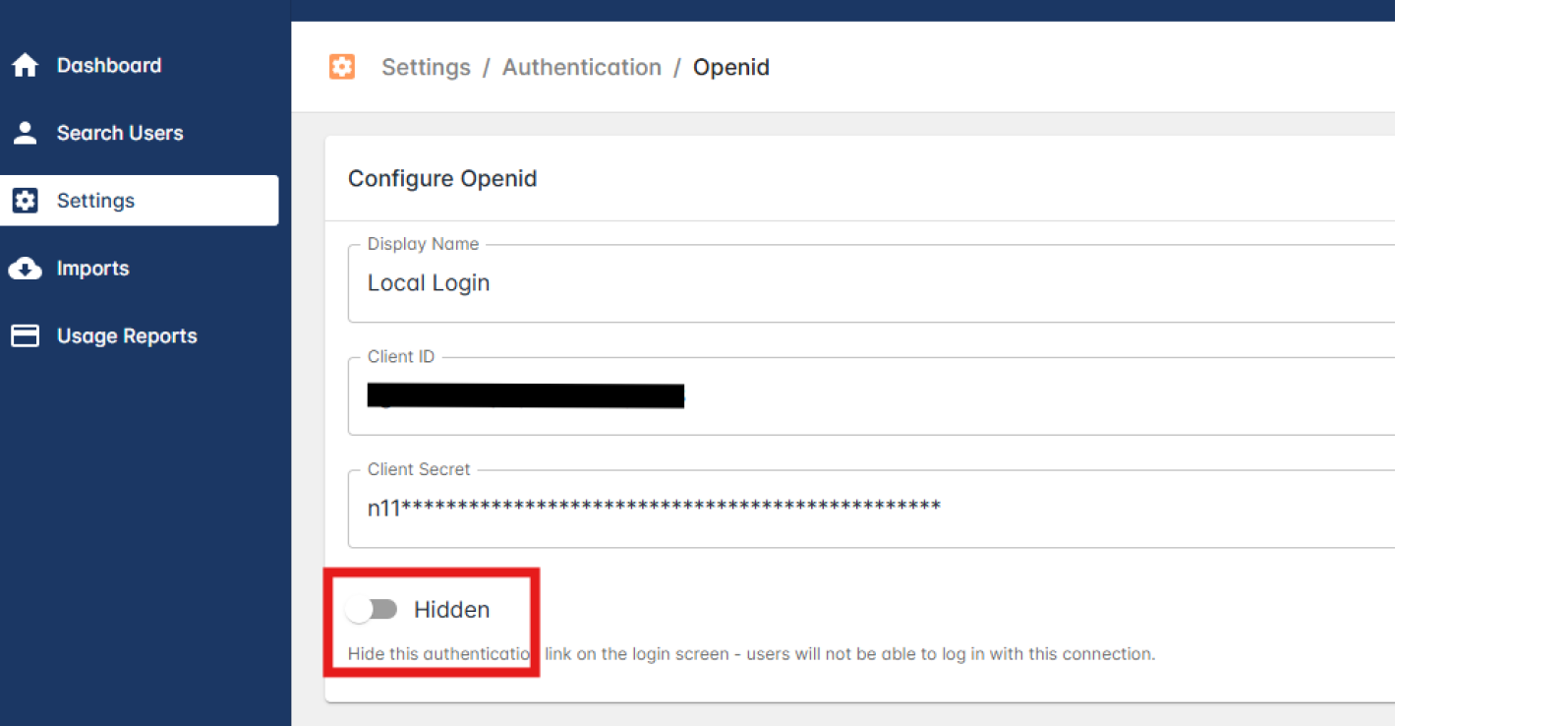
If at any point you want to prevent users from logging in using the local account, you can hide the authentication link for it. To do this, click on the edit icon under Actions.

Under Configure Openid, enable the Hidden option.
 1.png)